

Environments
There is one host per environment. Everything else (paths, parameters, behaviour) is identical, so the host should be the only thing that changes between your sandbox and production builds.
The sandbox host receives changes before production does, so it is the place to check a new widget release against your theme. Don’t ship it to shoppers.
Add the widget
Place the script tag where the messaging should render, usually directly below the price:price is in Pounds (600 is £600.00). The full parameter reference, floatUpdate for prices that change without a reload, and multi-widget pages are covered in the product page widget guide.
Which terms are shown
The widget and the modal each look for terms in the same order and stop at the first that applies:1
instalments
The terms you list, e.g.
instalments=2,3,4. Use this when your platform already knows the terms you offer.2
public_id
Your integration’s public id. Float looks up your configured term rules and uses the terms that apply to the price, so the messaging tracks what checkout will offer. Answers are cached for five minutes, so a change to your terms can take that long to appear.
3
Fallback
Neither was sent, or the
public_id lookup found nothing. See the fallback below.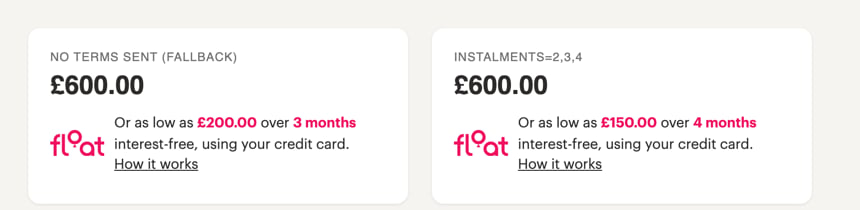
The same £600 product with no terms sent (left) and with instalments=2,3,4 (right).
The fallback
When an embed sends neitherinstalments nor public_id, Float doesn’t know which terms you offer, so it shows generic ones:
- The product page line reads “Or as low as £200.00 over 3 months interest-free, using your credit card.”
- The modal offers 2, 3, 4 and 6 instalments with 6 selected, and adds the line “The available instalment options may differ based on the retailer.”
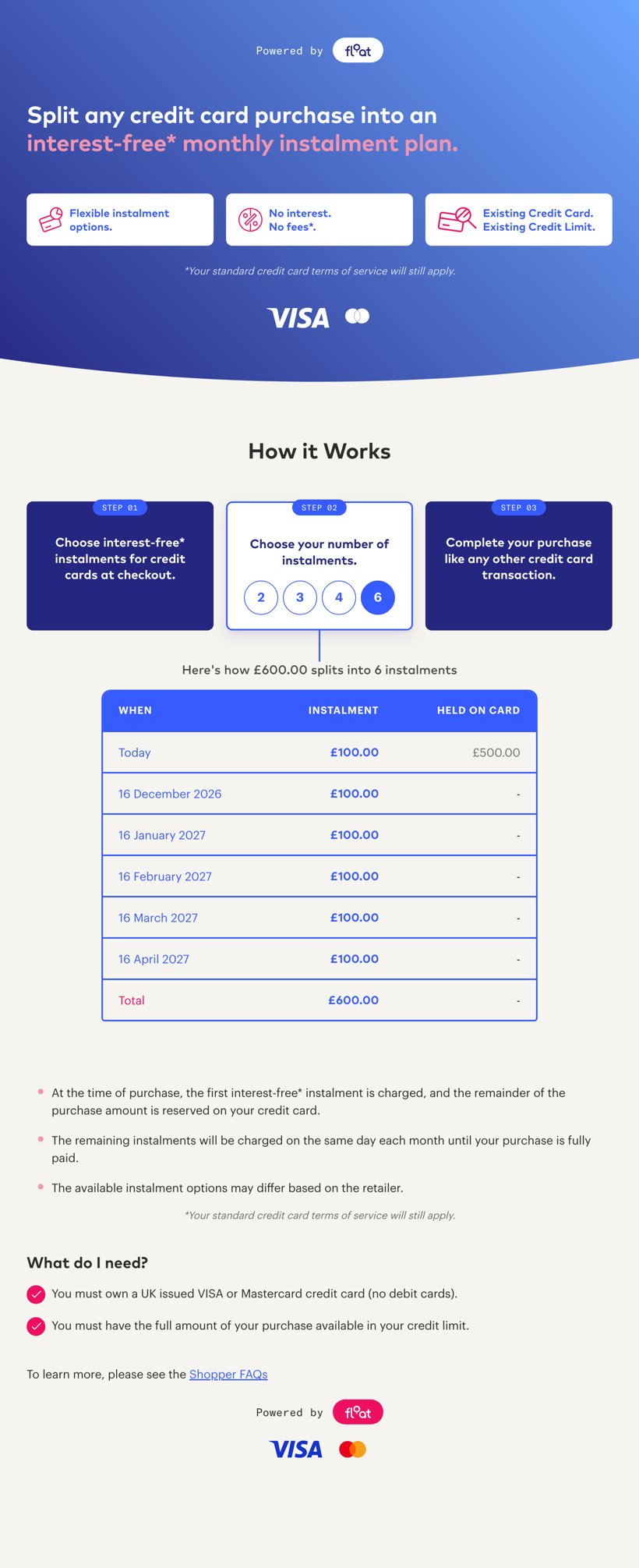
The fallback modal for a £600 product: 2, 3, 4 and 6 instalments with 6 selected, and the note that options may differ.
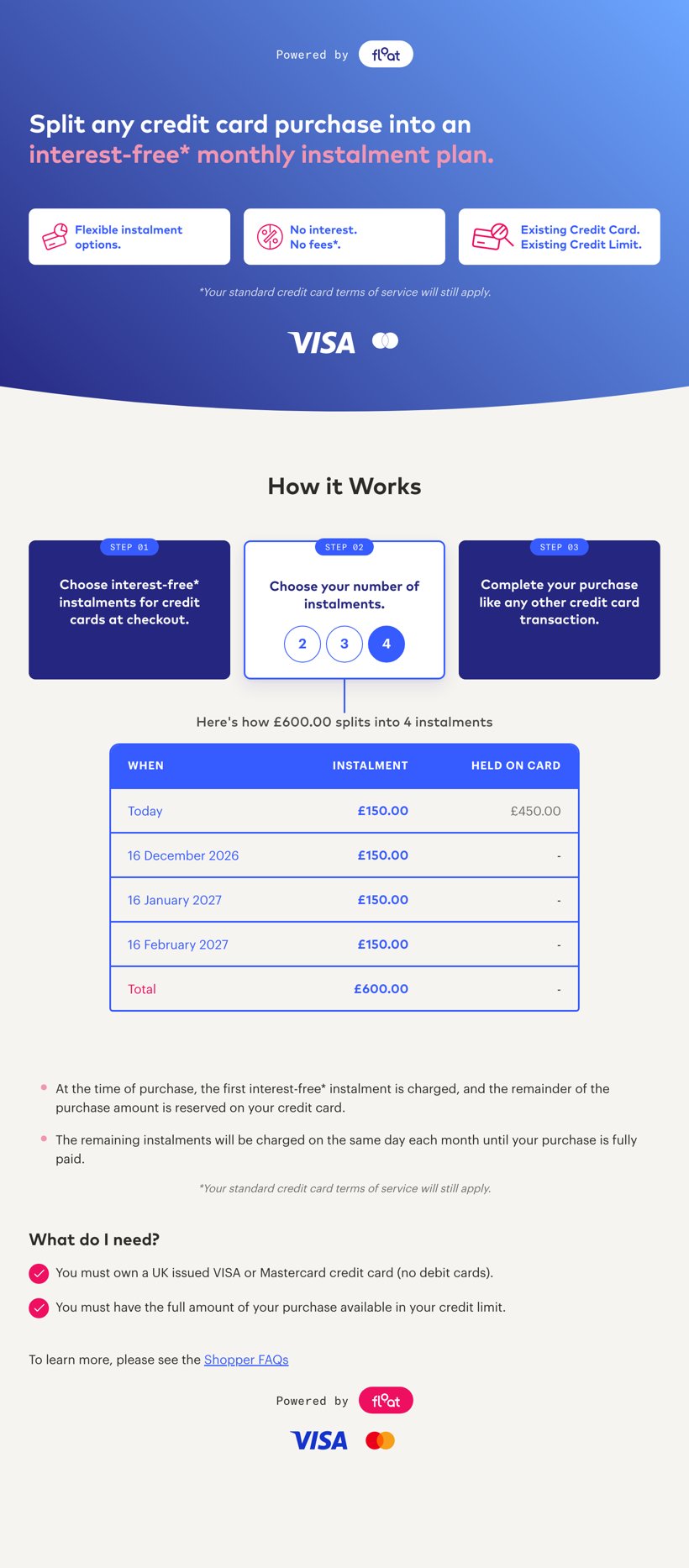
The same modal when the embed sends instalments=2,3,4: only those terms, 4 selected, and no note.
instalments or public_id so shoppers see your real terms and the note disappears.
A widget with
public_id is stricter than one with nothing: if Float has no terms for the price, it renders nothing on the product page rather than guess. If you want messaging to show regardless, send instalments.Open the modal yourself
The widget opens the modal for you. Load it directly only when you have your own “How it works” trigger, for example on a cart page, a payment-method list, or a landing page. It is a plain page, so an iframe inside your own lightbox or a link in a new tab both work:
The modal has no close button of its own; the lightbox or tab you open it in provides that.
Content Security Policy
If your site sends a Content-Security-Policy, allow the widget host for the environment you’re in:
A blocked terms lookup looks the same as “no terms”: the product page line doesn’t render.
Check it in sandbox
1
Point at the sandbox host
Load the widget from
staging-widgets.float.co.za with your sandbox public_id, or with the instalments you offer.2
Compare the terms with checkout
Open a product page, then start a sandbox checkout for the same amount. The terms in the modal’s picker should match the terms the payment page offers. If you use term rules that vary by basket size, repeat with a price in each band.
3
Confirm you are not on the fallback
Open the modal. If you see “The available instalment options may differ based on the retailer”, the embed is sending neither parameter, or the
public_id found no terms.4
Try the edges
A price that changes without a reload (variant, quantity, discount) should update the line through
floatUpdate. A product with no price should render no widget at all. A listing page with several products should show each one’s own amount.Go live
- Switch the widget host to
widgets.choosefloat.comin the same change that switches your API base URL tosecure.choosefloat.com. - Replace the sandbox
public_idwith your production one. - Update your Content-Security-Policy to the production host.
- Load a live product page, open the modal, and confirm the terms match your production checkout.